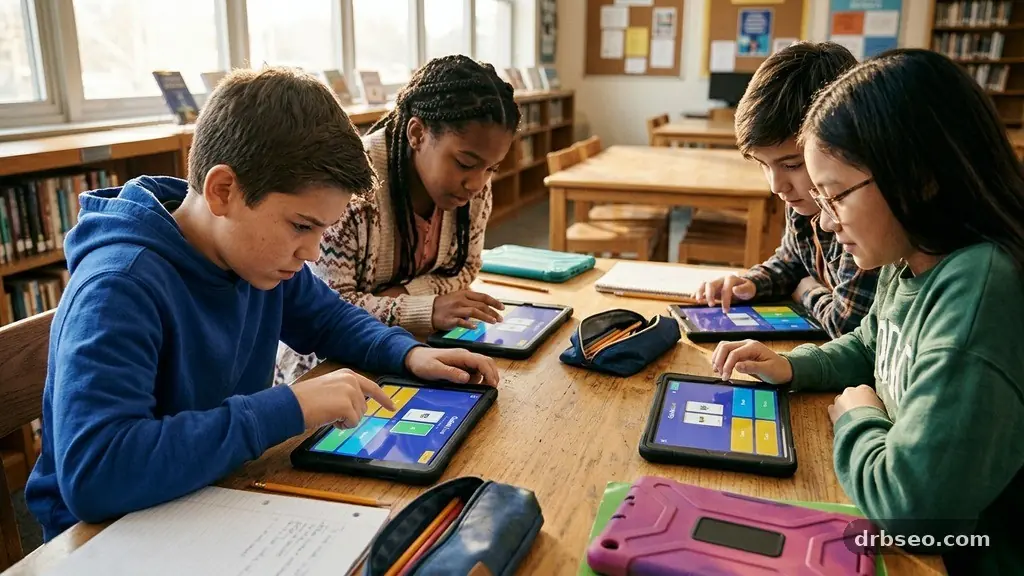
Joining Quizlet Live usually takes less than a minute once a teacher has started the activity. A student enters a six-digit game code at join.quizlet.com, chooses a nickname, and waits for the live game to begin.
The process is simple, but small details matter when a classroom is moving quickly: the right browser, a stable connection, and a clear understanding of team or individual mode can prevent confusion. This guide explains exactly how to join Quizlet Live, what happens after entry, how scoring works, and what to do when the code or screen doesn’t behave as expected.
The fastest way to enter a Quizlet Live game is to open a web browser on a phone, tablet, or computer and go to join.quizlet.com. You generally don’t need to create a new account just to join a game, although an existing Quizlet account can be useful for saving study activity and accessing other features.
Ask the teacher for the current game code. It is usually a six-digit code displayed on the teacher’s screen, and it only works while that particular live game is active. Enter the code carefully, then select the button that takes you to the name-entry screen.
Next, type a recognisable nickname. In a classroom, using your first name or an approved variation helps the teacher identify you, especially if several students have similar devices or usernames. Avoid offensive, distracting, or misleading names because the teacher may remove a player whose nickname breaks classroom expectations.
After entering your name, you’ll see a waiting screen. Stay on it until the teacher launches the activity, and don’t close the tab unless you’re intentionally leaving. The teacher may place students into teams automatically, or may start an individual game in which each person answers independently.
- Open a web browser or the Quizlet app.
- Visit join.quizlet.com if you’re using a browser.
- Enter the teacher’s live game code.
- Choose a classroom-appropriate nickname.
- Wait for the teacher to start the game.
If the game has already begun, you may still be able to join, depending on the teacher’s settings and the stage of the activity. The safest approach is to enter promptly, keep the game page visible, and tell the teacher if your name doesn’t appear on the projected lobby screen.
What Quizlet Live Actually Does
Quizlet Live turns a set of study questions into a shared classroom game. The teacher selects a Quizlet study set, and the platform presents terms, definitions, questions, or answers for students to match. Instead of reviewing flashcards alone, learners respond during a timed, interactive activity.
The platform is built around retrieval practice. A student must remember information and apply it to a question rather than simply rereading a definition. That difference matters because active recall often reveals gaps that remain hidden during passive review.
In team mode, each participant may see different answer choices from classmates. A student might see the correct definition while a teammate sees the matching term, so communication becomes part of the challenge. The group has to compare what appears on each screen before selecting an answer.
Individual mode changes the experience. Everyone answers from their own device, and the leaderboard reflects personal performance rather than a shared team result. This format can suit quiet review sessions, exam preparation, or classes where the teacher wants to measure individual understanding.
Quizlet Live isn’t simply a faster version of ordinary flashcards. It adds time pressure, visible progress, and a social layer that can make familiar material feel fresh. The teacher still controls the academic content, so the quality of the game depends heavily on whether the study set contains clear, accurate questions.
How the game flow works
Once the teacher starts the live game, a question appears on your device. Possible answers may be shown on your screen, while team mode can distribute answer choices among teammates. Select the answer that matches the prompt, then wait for the next question.
Correct answers move the team or player forward, but an incorrect answer can reset progress or slow the group down. That design discourages random guessing and makes careful reading valuable, even when the clock is running.
Joining Through a Browser or the Quizlet App
A web browser is often the simplest choice because it works on school computers, shared tablets, and personal devices without requiring a separate installation. Type the address directly rather than relying on a search result, and check that the page has loaded before entering the code.
The Quizlet app can also be useful on a phone or tablet. If the app is installed and updated, opening it before class may save time, particularly for students who regularly join live games. However, an app that needs an update or has been signed out can delay entry, so keeping the browser option available is sensible.
| Joining method | Useful for | Possible issue |
|---|---|---|
| Web browser | School computers and quick access | A mistyped address or blocked site |
| Quizlet app | Phones and tablets used regularly | Outdated app or sign-in problem |
| Existing Quizlet account | Saved study sets and personal learning history | Forgotten password or account-switching confusion |
| Guest-style game entry | Fast participation in a teacher-led session | Limited access to personal account features |
Before class starts, close unnecessary tabs and pause downloads or streaming. Quizlet Live needs a reliable connection to send answers and receive updated questions, and a crowded network can make the game appear slower than it really is.
On a phone, landscape mode may make answer choices easier to read, depending on the device and game screen. Keep the device charged, turn up the volume only if the teacher uses sound cues, and avoid switching between applications while a question is active.
For official instructions about entering a session, students can consult Quizlet’s help page for joining a live game as a student. The exact buttons may change as Quizlet updates its interface, but the basic process remains the same.
Game Codes, Nicknames, and Waiting Rooms
The game code is the key that connects your device to the teacher’s current session. It is not the same as the name of a study set, a Quizlet profile name, or a classroom password. If the teacher starts a new game, the previous code may stop working.
Enter every digit in the order shown. A single mistake can produce a message that looks like a connection problem even though the issue is simply an incorrect code. If several students receive the same error, ask the teacher to display the code again rather than repeatedly guessing.
Your nickname identifies you in the teacher’s lobby and may appear on the leaderboard. Choose something the teacher can recognise immediately, such as your first name and last initial if that is allowed by classroom policy.
Some schools prefer students not to use full names in public game displays. Follow the teacher’s instructions, especially in a remote lesson or a class where the projected screen can be seen by people outside the room.
The waiting room confirms that your device has joined but does not always mean the activity has started. You might see your nickname alongside classmates’ names while the teacher checks attendance, chooses team settings, or waits for another student to connect.
If your name is missing
First, check whether you entered the current code and whether the page shows a waiting message. Then tell the teacher your nickname, because the teacher’s lobby view may reveal whether you joined under a different name.
If your screen is stuck, refresh only after asking whether the teacher has started the game. Refreshing at the wrong moment can remove your temporary place in the lobby and force you to enter the code again.
Team Mode and Individual Mode
Team mode is designed for collaboration. Quizlet may assign students to groups, and teammates work together even though each person receives the activity on a separate device. The most useful contribution isn’t always answering first; it may be explaining why a definition matches a term or spotting a misleading option.
Because answer choices can be distributed across team members, communication is central. A student should say what options appear on their screen, listen to teammates, and avoid tapping simply because another player sounds confident.
Team mode can also expose a common learning issue: a group may recognise an answer collectively but fail to explain it. Teachers can use that moment as a prompt for discussion, asking students to justify the choice after the round ends.
Individual mode removes the shared team result and places responsibility on each player. It can be useful when a teacher wants a quick check of vocabulary, formulas, dates, or terminology without letting group discussion influence every answer.
| Feature | Team mode | Individual mode |
|---|---|---|
| Primary focus | Collaboration and shared progress | Personal accuracy and speed |
| Communication | Usually important to success | Usually unnecessary |
| Leaderboard meaning | Shows team performance | Shows individual performance |
| Best classroom use | Review, discussion, and group energy | Checks, practice, and independent recall |
Neither format is automatically better. A teacher reviewing new vocabulary may choose team mode so students can reason together, while an individual session may be more appropriate before a test when each learner needs a private measure of readiness.
How to Play Well Without Guessing
Read the entire prompt before looking for an answer. In a fast game, students sometimes select the first familiar word, but a nearly correct definition can be deliberately placed beside the correct one.
Use the wording of the study set as evidence. If the teacher’s flashcards distinguish “mitosis” from “meiosis” by the number and type of resulting cells, that distinction should guide your answer rather than a vague memory of the terms.
In team mode, speak in short, specific statements. “I see option C, and it defines the process as movement across a membrane” gives teammates useful information; “I think it’s that one” does not.
Pay attention to errors. A wrong answer is immediate feedback about what needs another look, especially when the question involves similar spellings, related historical events, or formulas with small differences.
- Read the question twice if the wording is easy to misinterpret.
- Compare the complete definition, not just one familiar keyword.
- Tell teammates exactly which answer choices appear on your screen.
- Use incorrect answers as clues for later revision.
- Keep the game screen open until the teacher ends the session.
Speed matters because the game is timed, but speed without accuracy can hurt a team. A calm, correct response is often more valuable than a rushed tap that sends everyone back to an earlier position.
Why Gamified Learning Can Help
Quizlet Live gives students a reason to retrieve information immediately. The question appears, the learner commits to an answer, and the result arrives quickly. That feedback loop can make a short review session more active than silently scrolling through flashcards.
The social format also changes classroom participation. A student who rarely volunteers during a whole-class discussion may still contribute a definition, identify an answer choice, or explain a clue to teammates.
Competition can create energy, but it needs boundaries. A leaderboard should encourage attention and effort rather than embarrass students who are still learning the material. Teachers can reduce pressure by treating the game as practice instead of a high-stakes assessment.
Gamification does not fix unclear content. If a study set contains duplicate answers, vague prompts, or inaccurate definitions, the game can reinforce confusion at high speed. Teachers should review the set before launching it and edit weak cards.
Students also benefit from using Quizlet Live as one stage of learning, not the entire study plan. After a game, revisit missed terms, write an explanation in your own words, and practise again later without the same time pressure.
Making the feedback useful
Ask what caused an error. Did you forget the term, misread the question, confuse two related ideas, or tap too quickly? Each cause calls for a different response, such as more flashcards, a comparison chart, or slower reading.
A teacher can pause after a round and discuss the hardest questions. That short conversation turns a score into instruction and gives students a chance to correct misconceptions before they become settled habits.
Troubleshooting Common Joining Problems
The most common problem is an expired or incorrect code. Quizlet game codes belong to live sessions, so a code from an earlier class may no longer work. Ask the teacher for the code currently displayed rather than copying one from a message sent earlier.
A blocked website can also prevent entry. School networks sometimes restrict particular domains, and students should follow school technology rules rather than trying to bypass them. Tell the teacher or school technology administrator if the official site is unavailable.
If the page keeps loading, check the network connection first. Switching from a weak mobile signal to a trusted Wi-Fi network may help, but avoid repeatedly changing networks while the game is active because the device can lose its session.
A frozen screen may result from an overloaded browser, an outdated app, or a temporary service issue. Close unrelated tabs, reopen the official Quizlet page, and re-enter the game code if the teacher confirms the session is still running.
| Problem | First step | When to ask the teacher |
|---|---|---|
| Code rejected | Check each digit against the projected code | Immediately if multiple students have the same issue |
| Name not visible | Confirm the waiting screen and nickname | If the lobby does not show your entry |
| Game freezes | Check connection and close extra tabs | If the session continues on classmates’ devices |
| App will not open | Use a browser as an alternative | If the school device blocks both options |
Don’t panic if you disconnect briefly. Rejoin with the same code when possible, then tell the teacher what happened so a temporary technical issue isn’t mistaken for non-participation.
Advice for Teachers Running a Live Game
A successful session begins with a focused study set. Ten carefully written questions can produce better discussion than a large set containing repeated terms and ambiguous definitions. Check that every answer is defensible before displaying the game code.
Give students a clear joining routine. Display the code, state the approved nickname format, explain whether the activity will use team mode or individual mode, and wait until most names appear before starting.
Set expectations for collaboration. In team mode, students should explain their reasoning, listen to classmates, and avoid grabbing the device from another person. These rules turn the activity into shared learning instead of a race dominated by the fastest typist.
Use the leaderboard carefully. Celebrating improvement, accurate explanations, or strong teamwork can make recognition broader than simply praising the top score. A student who corrects a misconception may have made the most meaningful contribution even without finishing first.
After the live game, spend several minutes on reflection. Ask which questions caused trouble, which terms were confused, and what students should review before the next lesson.
Choosing the right format
Team mode fits introductory review, vocabulary building, and lessons where peer explanation is valuable. Individual mode works well for a quick diagnostic check or a second round after students have already discussed the concepts together.
Teachers can also vary the study set between sessions. A first game might use direct definitions, while a later one uses examples and application questions, encouraging students to move beyond memorising isolated phrases.
FAQ About Joining Quizlet Live
Do I need a Quizlet account to join?
Usually, a student can join a teacher’s live game by entering the game code and a nickname without creating a new Quizlet account. An account may provide access to additional Quizlet features, but the teacher’s session settings determine what participants can do.
Where do I enter the Quizlet Live code?
Open a web browser and visit join.quizlet.com, or use the joining option provided in the Quizlet app. Enter the code shown on the teacher’s screen, then select a nickname and remain on the waiting page.
Why does my game code not work?
The code may have been typed incorrectly, replaced by a newer code, or linked to a session that has ended. Compare it with the teacher’s current display and ask for confirmation if the problem continues.
Can I join after the game has started?
Sometimes, but it depends on the teacher’s settings and how far the activity has progressed. Enter the current code quickly, and tell the teacher if your device shows a waiting screen while the rest of the class is already answering.
What should I do if I choose the wrong nickname?
Tell the teacher immediately so they can identify your entry. If the platform allows you to leave and rejoin, follow the teacher’s instructions rather than opening several duplicate sessions.
Next Steps for a Better Session
Joining Quizlet Live is straightforward: use the current code at join.quizlet.com, enter a suitable nickname, and wait for the teacher to launch the activity. The strongest results come from treating each question as practice, communicating clearly in team mode, and reviewing mistakes after the leaderboard appears.
Before the next class, test your browser or Quizlet app, keep your device charged, and ask for clarification if the format is unfamiliar. With those small habits in place, joining Quizlet Live becomes the easy part, leaving more attention for the concepts the game is meant to help you remember.