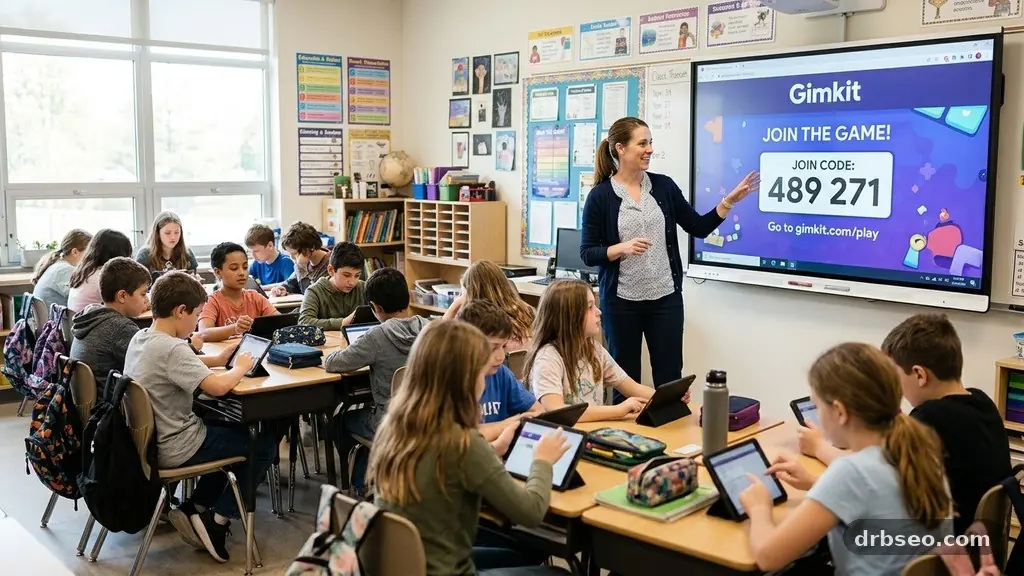
Master The Gimkit Join Code begins with one simple fact: students usually enter a short code at gimkit.com/join while a teacher hosts the live game from the Gimkit dashboard. That code connects the class to the correct session, but it isn’t the whole experience. Game mode, question design, team rules, power-ups, and feedback all shape what happens next.
Used thoughtfully, Gimkit can turn review questions into interactive classroom gaming without reducing learning to random competition. This guide explains how join codes work, how teachers prepare live quiz games and assignments, how students solve common access problems, and how to use the platform for meaningful formative assessment.
What a Gimkit Join Code Does
A Gimkit join code is the temporary access key for a particular classroom game or activity. The teacher creates or selects a Kit, chooses a mode, starts the session, and Gimkit generates a code that students use to enter that specific room.
Students generally visit gimkit.com/join, type the code shown by the teacher, and choose a display name if the session allows it. After joining, they wait in the lobby until the teacher host begins the activity.
The code does not represent a permanent classroom password. It is tied to a live session, so a code from yesterday’s game may no longer work once that activity has ended.
Why the code matters
The join code keeps students together in the same game instance. Without it, a learner might open the wrong Kit, enter a different teacher’s room, or start an unrelated practice activity.
For teachers, the code is a quick way to coordinate student participation without creating a separate account invitation for every learner. A teacher can display it on a projector, write it on a board, post it in a learning management system, or read it aloud.
For students, the process is deliberately short. They don’t need to understand the game settings before entering; they only need the correct code, a supported browser, and the teacher’s instructions about names or nicknames.
Live sessions and assignments differ
A live Gimkit game usually depends on a teacher host. The teacher controls when the room opens, which mode is active, and when the session starts or ends.
An assignment is more flexible because students may complete it outside the same real-time room. Instead of relying only on a live lobby, the teacher can provide the assignment’s access instructions and set a deadline or completion expectation in the platform.
That distinction matters for absent students, homework, intervention groups, and classes with unreliable internet access. A live code suits shared classroom energy, while an assignment can provide a quieter path to the same review material.
How Teachers Create and Share the Code
The first step is choosing a Kit that matches the lesson objective. A Kit may contain vocabulary, mathematical reasoning, historical facts, science concepts, or questions created specifically for the current unit.
After selecting the content, the teacher chooses a game mode and starts hosting. The exact buttons and available modes can change as Gimkit updates its interface, so the most reliable reference is the platform’s official Gimkit Help Center.
Once the live room opens, the teacher displays the generated Gimkit join code. Students should see the code before the first question begins, giving everyone time to connect rather than forcing late arrivals to interrupt the opening instructions.
A reliable launch routine
Clear routines reduce technical delays. A teacher can project the join page, show the code in large text, and give students a short sequence: open the page, enter the code, type an approved name, and wait in the lobby.
- Display the join code in a location visible from every seat.
- Tell students whether real names, initials, or assigned nicknames are required.
- Ask students to raise a hand if the code is rejected instead of repeatedly refreshing.
- Check the lobby for unexpected names before starting.
- Explain whether late arrivals may join after the game begins.
That last point is easy to overlook. Some students may be opening a browser, sharing a device, or dealing with a slow connection, so a short lobby window can improve inclusion without making the rest of the class wait indefinitely.
Sharing codes safely
A join code is temporary, but teachers should still avoid posting a live session publicly. If the code appears on an open website or public social media account, people outside the class may attempt to enter.
For a normal classroom, projecting the code or placing it inside a private learning management system is usually sufficient. Teachers should also review the participant list and remove unfamiliar names before launching the activity.
Students benefit from a simple privacy rule: use only the identity format the teacher requests. A first name, initials, or assigned number is often better than sharing personal details inside a public-facing nickname.
Getting Students Into the Game Without Friction
Most joining problems come from small mismatches rather than complex software failures. A student may have entered a character incorrectly, opened the wrong website, used an expired code, or joined after the teacher closed the room.
Teachers can prevent many issues by writing the code clearly and repeating it once. Codes may contain letters or numbers that look similar on a projector, so reading each character slowly can help.
A student troubleshooting checklist
When a code doesn’t work, students should pause before trying random solutions. The fastest fix is usually to confirm the address, code, and timing with the teacher.
- Check that the browser is on the official Gimkit join page.
- Re-enter the code carefully, paying attention to similar-looking characters.
- Confirm that the teacher has started or opened the session.
- Refresh the page once if the lobby appears frozen.
- Try a supported browser or another school-approved device.
- Tell the teacher the exact message on screen if the problem continues.
Students shouldn’t open multiple tabs and submit several names at once. That can create duplicate entries, make the teacher’s participant list harder to read, and sometimes leave an abandoned session open in the background.
Common classroom problems
An expired code usually means the original live session has ended or the teacher has created a new room. In that situation, no amount of retyping will solve the issue; the student needs the current code.
A blank screen may result from a weak connection, a blocked script, or a browser that needs updating. School networks can also restrict certain web features, so the teacher or technology staff may need to investigate if many students experience the same failure.
Audio and projection problems are separate from joining. A student can sometimes enter successfully even when the teacher’s screen is difficult to see, which is why displaying the code in more than one place can keep the launch moving.
Choosing Modes That Support Learning
Gimkit’s appeal comes partly from its game structure: students answer questions, earn in-game resources, and make choices that affect their progress. The best mode depends on whether the lesson needs speed, collaboration, repetition, or independent practice.
A fast competitive mode can energize a review session, but it may reward quick clicking if the questions are too easy. A slower or more collaborative format can give students time to reason, discuss, and correct misconceptions.
Match the mode to the objective
If the goal is recalling multiplication facts, a brisk live quiz may provide useful repetition. If the goal is interpreting a primary source, students may need more time to read before selecting an answer.
Team-based play can reduce the pressure on students who dislike individual rankings. It also creates a chance for academic conversation, provided the teacher explains how teams make decisions and prevents one confident player from answering everything.
Independent assignments work well for make-up work or targeted practice. A student can revisit material without the noise and time pressure of a full-class game.
| Instructional purpose | Useful format | Teacher emphasis |
|---|---|---|
| Quick recall and review | Short live quiz game | Accuracy before speed |
| Discussion and peer reasoning | Team-based play | Explain why an answer is correct |
| Absent-student practice | Assignment | Completion and feedback |
| Student-created questions | KitCollab activity | Quality and clarity of submissions |
| End-of-unit review | Mixed-mode session | Use results to identify gaps |
The mode should serve the question, not the other way around. If students need to compare evidence or justify a claim, a mode that leaves room for teacher discussion may produce more learning than the loudest or fastest option.
Using Power-Ups and Virtual Currency Well
Power-ups and virtual currency give Gimkit its distinctive game layer. Students may earn resources by answering questions and then spend those resources on choices that alter scoring, protection, or progress, depending on the mode.
That system can make repeated practice feel purposeful. It can also distract from the lesson if students focus on purchasing upgrades without thinking about the content.
Set a learning purpose first
Before starting, explain what the in-game economy represents. It may be a motivational layer around review, not a measure of intelligence, personal worth, or final academic ability.
Teachers can ask students to notice which decisions help them answer more accurately. After the game, a short discussion can connect their choices to risk, patience, resource management, or teamwork.
In a vocabulary lesson, for example, students might be asked to record two terms they missed before spending time on strategy. The academic correction comes first; the game reward supports continued effort.
Prevent competition from taking over
Leaderboard placement is only one possible success measure. A student who improves from five correct answers to ten has made important progress even if another player remains at the top.
Teachers can celebrate accuracy streaks, thoughtful explanations, improved participation, and helpful team communication. Those signals make the game more welcoming for students who need extra processing time.
It also helps to avoid public criticism of incorrect answers. The platform can reveal a misconception, but the classroom response should treat that information as a useful next step rather than an embarrassment.
Turning Play Into Formative Assessment
Interactive classroom gaming becomes educationally valuable when the teacher uses student responses to make an instructional decision. A high score alone doesn’t prove that every learner understands the underlying concept.
Gimkit can reveal patterns that are difficult to notice during a traditional worksheet. The teacher may see that a class recognizes a definition but struggles to apply it in a new example, or that one distractor attracts many students.
Read the results beyond the leaderboard
Look for questions with repeated errors, long response times, and disagreement among teams. Those signals can point to unclear wording, a missing prerequisite, or a concept that needs another explanation.
Question quality matters. If two answers could reasonably be defended, the results may reflect ambiguity rather than student misunderstanding, so the teacher should review the item before drawing conclusions.
A useful follow-up is to select two or three challenging questions and ask students to explain the correct reasoning without the game running. That shifts the class from clicking answers to articulating knowledge.
Plan the next lesson from evidence
Suppose a science class performs well on identifying parts of a cell but misses questions about their functions. The next lesson can begin with a sorting task or diagram explanation instead of repeating every definition.
In mathematics, a cluster of errors involving negative numbers may suggest a need for visual models before another timed practice round. The game provides a starting point, not a replacement for professional judgment.
Teachers should also compare game performance with other evidence, such as written work, discussion, exit tickets, and individual conferences. A student may know the material but struggle with a fast interface, while another may guess successfully under pressure.
Kit Creation, KitCollab, and Assignments
A well-designed Kit starts with questions that test the lesson’s intended thinking. Multiple-choice items can assess recall, but carefully written distractors can also expose common misconceptions.
Use a mixture of straightforward checks and transfer questions. After asking students to identify a poetic device, follow with a short example that requires them to recognize the device in context.
Invite student voice with KitCollab
KitCollab can let students contribute questions to a shared activity, depending on the available features and teacher settings. This changes students from answerers into question writers.
Question creation reveals whether learners understand what makes an answer correct and what makes a distractor plausible. The teacher can review submissions, correct wording, and select items that support the unit’s goals.
A helpful prompt asks for the question, the correct answer, and a brief explanation of why one tempting wrong answer is incorrect. That extra explanation discourages trivia-only contributions and gives the teacher insight into student thinking.
Design better assignments
An assignment should have a clear purpose and a reasonable completion window. Students need to know whether they are practicing, preparing for a test, or demonstrating mastery.
Teachers can pair an assignment with a reflection question, such as “Which item changed your thinking?” or “What topic should we review next?” The reflection adds information that a score cannot provide.
For differentiation, create versions with different question difficulty or focus areas. Students who need foundational practice shouldn’t be pushed immediately into the same challenge level as students ready for extension work.
Improving Classroom Engagement for Every Student
Game-based learning works best when participation feels attainable. Some students enjoy rankings and rapid decisions, while others engage more deeply when they can collaborate, reflect, or work privately.
Offering varied participation routes helps prevent one personality type from defining the activity. A teacher might use teams for one session, an individual assignment for another, and student-authored questions later in the unit.
Support students who dislike competition
Explain that students don’t have to be the fastest to contribute meaningfully. Accuracy, persistence, improvement, and useful discussion can all be recognized during the debrief.
Team play may help, but teams need structure. Assign rotating roles such as reader, evidence checker, calculator, or spokesperson so a single student doesn’t control every decision.
Teachers can also remove unnecessary public pressure by limiting leaderboard commentary. The goal is active thinking, not making a visible ranking the emotional center of the lesson.
Make access more inclusive
Give directions in both spoken and written form. Students with hearing needs, language barriers, attention difficulties, or processing differences benefit when the instructions remain visible after the teacher begins speaking.
Allow a little extra time when the learning target is reasoning rather than speed. A timed interface can otherwise measure reading speed, device familiarity, or internet performance more than content knowledge.
Check whether every student has a working device and a stable connection before relying on a live code for assessment. If not, provide a paper alternative, a partner arrangement, or an assignment window that avoids penalizing circumstances outside the student’s control.
Teacher Planning Before, During, and After a Session
The strongest Gimkit lessons are planned like lessons, not improvised as entertainment. Decide what students should know or be able to do, then select questions and settings that produce evidence of that goal.
Before class, test the Kit and remove duplicate, outdated, or ambiguous items. Preview the game mode so you understand how power-ups, teams, scoring, and late entry may affect the experience.
Before students join
- Confirm that the Kit matches the current unit and grade level.
- Choose a mode that fits the amount of time available.
- Prepare the join code display and backup instructions.
- Decide how nicknames, teams, and late arrivals will be handled.
- Plan one short debrief question for the end.
A backup plan protects instructional time. Keep a few review questions ready for oral discussion or a whiteboard activity in case the network fails.
During the game
Watch more than the scoreboard. Notice who is repeatedly changing answers, who has stopped participating, and which questions cause a sudden drop in accuracy.
Pause when a misconception affects many students. A two-minute explanation can be more valuable than allowing the class to continue accumulating points for an idea they have misunderstood.
Keep the teacher’s role active but not intrusive. Students should make decisions and answer questions, while the teacher monitors, encourages, clarifies, and protects the learning objective.
After the game
End with a debrief rather than closing the browser immediately. Ask students to name one answer they changed, one concept they still question, or one strategy that helped them learn.
Save useful observations while they are fresh. A note such as “most errors involved converting fractions to decimals” is more actionable than simply recording the final winner.
Use the next activity to respond to the evidence. That might mean a mini-lesson, peer explanation, targeted assignment, or a second round with revised questions.
Privacy, Device Use, and Responsible Competition
Gimkit sessions involve student names or nicknames, answer activity, and participation data, so teachers should follow their school’s technology and privacy policies. The platform’s available controls and data practices may change, making local guidance important.
Use the minimum identifying information needed for the activity. If a class normally uses student initials or roster numbers, keep that convention consistent rather than asking learners to publish full personal details.
Set norms before play
Students should understand that entering a classmate’s name, spamming the chat if enabled, or deliberately disrupting a session is not harmless fun. The teacher can state these expectations before sharing the code.
Competition should remain respectful. Celebrate strong work without mocking low scores, and make it clear that an incorrect answer is information for learning, not evidence that someone doesn’t belong.
Device use also needs boundaries. Students should stay on the assigned activity, keep volume at the agreed level, and report technical issues honestly rather than using them as a reason to leave the lesson.
FAQ About Gimkit Join Codes
Where do students enter a Gimkit join code?
Students typically enter the code at gimkit.com/join using a browser on a school-approved device. They should type the current code provided by the teacher and follow any instructions about display names or lobby behavior.
Why does a Gimkit code say it is invalid?
The code may have been typed incorrectly, the teacher may not have started the session, or the live room may have ended. Ask the teacher to confirm the active code before trying a different device or browser.
Can students join after a game has started?
That depends on the session settings and game mode. Some live activities may allow late entry, while others may lock the room after the start, so students should follow the teacher’s stated policy.
Can a join code be used for homework?
A live code is generally designed for a hosted session, while an assignment is more suitable for work completed independently over time. Teachers should provide the specific assignment instructions rather than assuming a live-room code will remain active.
How can teachers stop random names from entering?
Share the code privately, check the lobby before starting, and remove or question unfamiliar participants. Clear nickname rules and a quick roster check make it easier to identify unexpected entries.
Make the Join Code the Start of Learning
Master The Gimkit Join Code isn’t really about memorising a website or typing six characters quickly. It means using the access step to launch a purposeful experience in which students answer, discuss, revise, and receive useful feedback.
Start with one well-written Kit, explain the entry routine, and connect the results to your next teaching decision. When the code opens a thoughtfully planned activity rather than a distraction, Gimkit can bring energy to review while keeping student participation and learning at the centre.